
Solarsat guide
Setting up CCTV remote viewing securely
Viewing CCTV on your phone is useful only if the connection is dependable and access stays under control. A sound setup covers more than installing an app. It includes account ownership, network security, playback, shared users and a clear process for removing access later.
Phones and email Monday to Saturday, 8:30am to 6pm. Showroom visits by appointment.
Understand how the phone reaches your footage
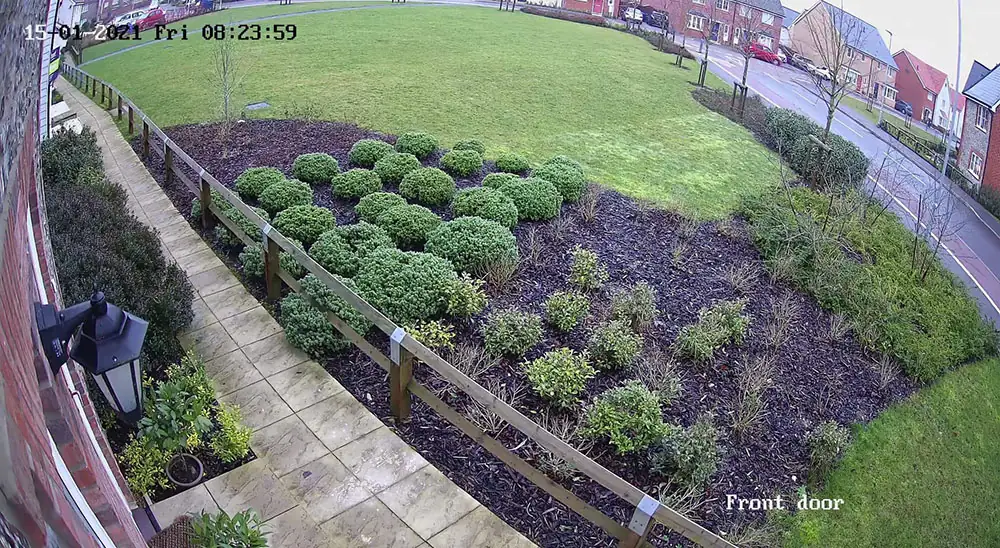
Depending on the system, an app may connect through a supported remote connection service, a cloud recording platform or a professionally configured private network route. The recorder or camera normally needs a working connection to your router. The phone then needs suitable internet access wherever you are viewing.
Live viewing, recorded playback and cloud storage are separate functions. A system may record locally while using an online service to establish remote access. Another may upload recordings to cloud storage. Ask which equipment and services are involved rather than assuming that using an app means all footage is stored online.
Establish what remains available during a broadband outage. Local recording may continue if the design supports it, but remote access can still stop. Keep the recorder safely located and ventilated, and make sure someone knows how to check its status without relying entirely on the phone.
Check upload bandwidth and realistic viewing quality
Your property's upload capacity matters because footage must leave the site to reach your phone. Download speed alone does not describe that ability. Several viewers, multiple camera streams, video calls and online backups can compete for the same connection and affect remote playback.
Some systems offer a lower-bandwidth stream for routine viewing alongside a higher-quality recording stream. Where available, that can make phone access more responsive without necessarily reducing the quality stored locally. Check the actual settings rather than assuming the preview represents the recording.
Test from mobile data or another outside connection, not just the property's Wi-Fi. Try opening one camera, several views and a saved recording. A successful test inside the building does not confirm that remote access works. If connections struggle, investigate the network and settings before reducing recording quality across the system.
Protect accounts and avoid unnecessary exposure
Change default credentials during setup. Use strong, unique passwords for the recorder, relevant online account and the email account used for recovery. A password manager can help keep these distinct. Enable multi-factor authentication wherever it is offered, and store recovery information somewhere secure.
Keep cameras, recorders, apps and routers updated through supported methods. Check whether updates are automatic or require action, and assign responsibility. Equipment that no longer receives security support needs review even if it still produces a picture. Avoid installing apps from unsolicited messages or unfamiliar download sites.
Do not respond to unexpected instructions to open router ports or disable security controls. Directly exposing camera or recorder services to the internet can create avoidable risk. If a connection method requires network changes, have a competent installer explain the purpose, alternatives and restrictions before making them.
Manage shared users, alerts and exported clips
Give household members or staff individual accounts where supported rather than sharing the administrator login. Use the least access each person needs, separating viewing from configuration where possible. Remove access when somebody leaves, a contractor finishes or a phone is lost. Review account recovery contacts as well.
Alerts and live viewing serve different purposes. An alert may provide a notification or event preview, while live viewing lets you inspect the current scene. Check app permissions and phone notification settings, but do not treat a notification as proof that the complete incident was recorded.
Practise finding and exporting a short recording. Confirm the time, selected cameras and destination, and check that the exported file plays independently. Keep original exports securely, limit who receives them and avoid leaving sensitive clips in shared photo libraries. Available formats and export methods vary between systems.
Common mistakes to avoid
Leaving the installer as the only account owner can make later changes difficult. The authorised property owner or business representative should control the primary account and recovery details. Any continuing installer access should be understood, agreed and removable rather than left as an unexplained shared login.
Reusing an email password for CCTV increases the consequences of either account being compromised. Writing credentials beside a publicly accessible recorder is also unhelpful. Keep a secure record that authorised people can recover without making it available to every visitor or temporary worker.
Another mistake is assuming a working live image proves everything else is healthy. Check recorded playback, timestamps and exports separately. Repeat an outside connection test after changing a router, broadband provider or account settings. Do not factory-reset equipment casually, since configuration and access arrangements may need rebuilding.
When to hire a professional for setup and handover
Professional help is sensible where remote access is unreliable, the network is shared with business systems or account ownership is unclear. It is also useful when inherited equipment has unknown settings or someone has previously exposed services through the router without a clear record.
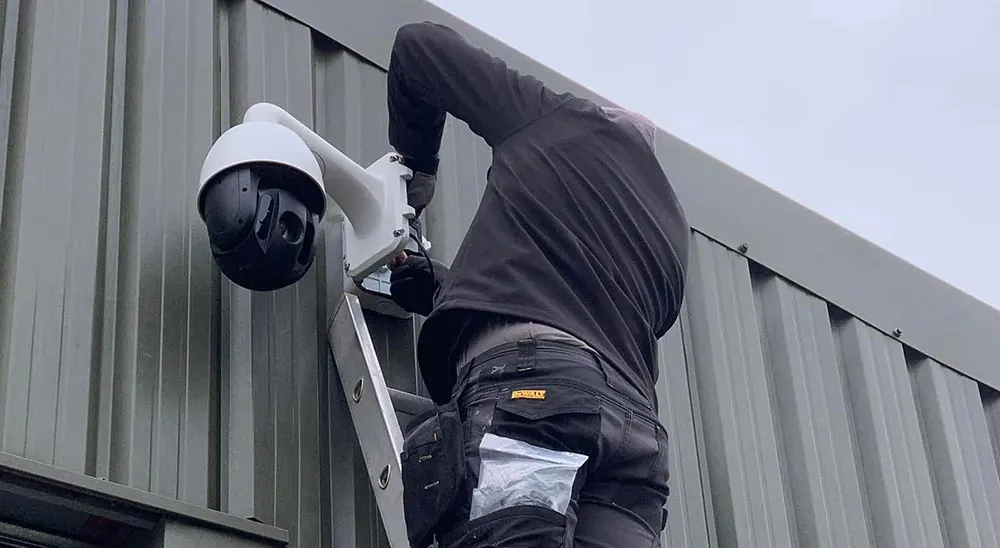
Ask for a handover that covers account ownership, user permissions, updates and recovery. The installer should explain the supported connection method and demonstrate remote access from outside the local network. Confirm who is responsible for future network changes and how any support access will be controlled.
Before signing off, practise playback and export yourself. Keep an equipment list and a secure record of relevant account details, but never send passwords through an ordinary enquiry form. A usable handover leaves you able to manage everyday access without sharing the administrator account whenever somebody needs to view a camera.
Have a question about your own property? Contact our Mildenhall team.
FAQs
Frequently asked questions
Want advice for your own home or business?
Call our Mildenhall team or send an enquiry and we will talk through the options.
Enquiries
Ask us a question or get a quote
Tell us a little about your property and what you need. We will get back to you to talk it through.
- 01638 515551
- info@solarsat.co.uk
- Phones and email Monday to Saturday, 8:30am to 6pm
- 8 High Street, Mildenhall, Suffolk IP28 7EQ. Showroom visits by appointment.