
Solarsat guide
Make your home office connection work better for calls
A video call can struggle even when a speed test looks impressive. The connection needs to carry sound and pictures steadily in both directions, through your home network and out to the meeting service. Start with repeatable checks at the router and your desk before replacing equipment or changing your broadband package.
Phones and email Monday to Saturday, 8:30am to 6pm. Showroom visits by appointment.
Understand what a video call needs
Download carries other people's voices, pictures and shared screens towards you. Upload carries your microphone, camera and shared documents outwards. A connection with ample download capacity can still struggle when its upload is busy, particularly while cloud backups or large file transfers are running.
Latency is the time data takes to travel across the connection. High latency makes conversation feel delayed. Jitter means that delay varies, so speech may arrive unevenly. Packet loss means some pieces of data do not arrive, which can lead to broken audio or frozen pictures.
No single headline speed explains all of this. Meeting software, the computer, the broadband service and the network between them all play a part. Note whether colleagues lose your voice, you lose theirs, or the whole application freezes. Those observations help narrow the investigation before any hardware is bought.
Compare the router connection with the workspace
Use the same laptop for an initial comparison, with a suitable Ethernet connection to the main router first. Turn off the laptop's Wi-Fi so the test uses the cable. Record results and call behaviour at a quiet time, then repeat when problems normally occur, without deliberately disrupting important work.
Repeat at the desk using the normal connection. Keep track of upload, download, latency and any reported packet loss, alongside the time and household activity. Tests use different methods and servers, so compare patterns rather than treating one result as a definitive diagnosis.
If wired calls at the router are consistently better, investigate the local path to the desk. If both locations struggle at similar times, the broadband connection or shared traffic deserves attention. Before blaming either, check another application or device where possible, since a faulty headset or overloaded laptop can imitate a network problem.
Use Ethernet first, then improve the wireless path
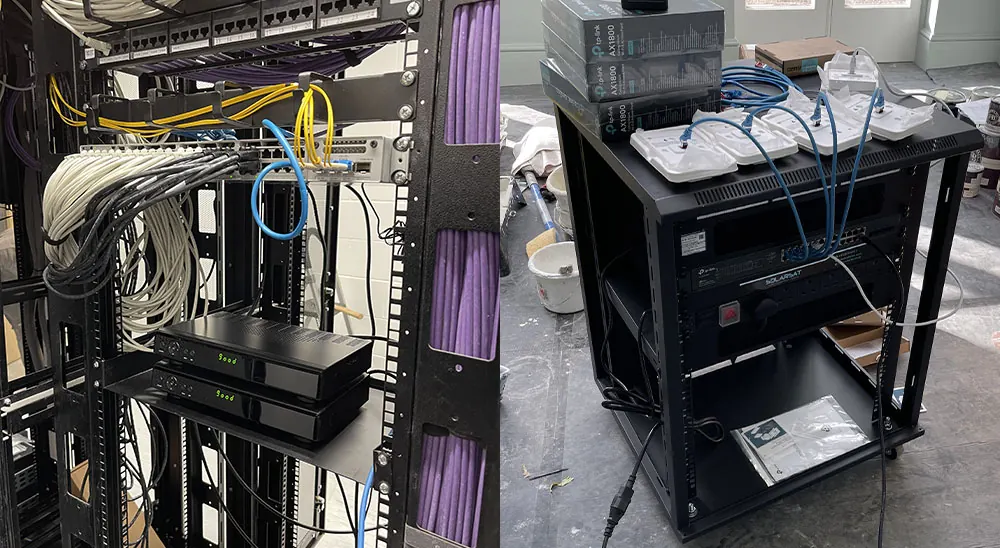
A wired Ethernet connection removes the desk's wireless hop and is a useful starting point for a fixed workstation. Check that the laptop adapter, docking station and cable are sound. Route temporary leads safely for testing, and plan a proper outlet rather than leaving a cable across a doorway.
Where Wi-Fi is necessary, keep the access point reasonably close to the working area and out of enclosed cupboards. Walls, metal furniture and nearby equipment can affect reception. A strong signal indicator does not prove a quiet radio channel or a healthy connection back to the router.
For a garden office or other separate building, assess the link serving the building as well as the Wi-Fi inside it. A properly designed cable route or suitable building-to-building wireless link may be appropriate. The choice needs a site assessment, especially where outdoor cable protection, distance or electrical considerations are involved.
Check shared traffic, work settings and power
Look for uploads that coincide with poor calls, including photo syncing, backups and camera traffic. Large downloads and streaming can also compete for capacity. Scheduling flexible transfers outside meetings may help. Router traffic-priority settings can sometimes improve sharing, but they need suitable configuration and cannot create extra connection capacity.
A work VPN changes the route that some or all traffic takes. If trouble appears only with the VPN connected, give your IT team the timing and comparison results. Do not disable required protection or bypass workplace policies. The organisation may need to investigate its VPN, device configuration or meeting service.
Keep routers, switches and any network cabinet ventilated, powered reliably and accessible for checks. Label essential power supplies so they are not unplugged accidentally. A suitable backup power unit can support selected equipment during a short interruption, but only within its capacity and without guaranteeing the outside connection remains available.
Common mistakes to avoid
Avoid buying a faster package before checking the desk connection. More broadband capacity will not repair a damaged lead or a weak wireless link. Equally, adding wireless equipment without understanding its connection back to the router can introduce another bottleneck rather than improve calls.
Do not change several settings at once. Make one controlled change, record it and repeat the same test. Keep screenshots and timestamps for recurring faults. Repeatedly restarting the router may interrupt useful evidence and affect other users, so follow the provider's troubleshooting process where a line fault is suspected.
Check simple non-network causes too: microphone selection, camera settings, application updates and computer load. If only one meeting platform struggles while other services work normally, include that detail when seeking help. Avoid publishing diagnostic screenshots that expose account details, public addresses or workplace information.
When to bring in an installer or provider
Contact the broadband provider when repeated wired checks at the main router show problems across devices, particularly if its own diagnostics report a fault. Supply times, symptoms and test conditions. This is stronger evidence than saying that Wi-Fi feels slow, and helps distinguish a service issue from an indoor coverage issue.
Bring in a network installer when you need a reliable desk outlet, a better access-point position, cabinet improvements or a connection to another building. Ask for checks at the actual workspace and a clear explanation of the remaining limitations. Keep your employer's IT team involved where managed devices or VPN settings affect the outcome.
Have a question about your own property? Contact our Mildenhall team.
Related services
Services this guide covers
Wi-Fi and networking
Whole-property Wi-Fi, outdoor coverage, wired network points, data cabinets and wireless links between buildings.
Find out moreData and network cabling
Wired network sockets, data cabinets and structured cabling for offices and homes, planned for growth and easy to maintain.
Find out more
FAQs
Frequently asked questions
Want advice for your own home or business?
Call our Mildenhall team or send an enquiry and we will talk through the options.
Enquiries
Ask us a question or get a quote
Tell us a little about your property and what you need. We will get back to you to talk it through.
- 01638 515551
- info@solarsat.co.uk
- Phones and email Monday to Saturday, 8:30am to 6pm
- 8 High Street, Mildenhall, Suffolk IP28 7EQ. Showroom visits by appointment.