
Solarsat guide
Plan a meeting room that works at both ends
A meeting room is successful when people can join, share and speak without troubleshooting the equipment first. Start with the meetings you actually hold, including remote participation. Then coordinate the display, camera, sound, connections and controls around the furniture, network and people who will use them.
Phones and email Monday to Saturday, 8:30am to 6pm. Showroom visits by appointment.
Define the room and its meeting tasks
Record the normal and maximum headcount, table arrangement and whether people present from seats or move around. A small discussion room has different needs from a training space with several rows. List typical material, such as spreadsheets, drawings, slides or shared documents. Fine detail demands more careful display sizing than a presentation made up of large headings, even where the audience size is identical.
Check readability from the furthest and most awkward seats using representative content rather than a screen-size rule alone. Avoid placing the display where windows create strong reflections. Plan the camera position at the same time: its field of view must include the required seats without making everyone appear unnecessarily small. A very wide lens may include the room but distort people near the edges or show distracting unused space.
Design sound for remote listeners too
Microphones need useful pickup at every speaking position, not merely enough coverage to detect a voice somewhere in the room. Table microphones may be affected by laptop fans, typing and papers. Ceiling microphones depend on room conditions and appropriate placement. Hard surfaces and noisy ventilation can undermine either arrangement. Review acoustics before expecting processing to remove every reflection or background sound from a busy meeting.
Room speakers should let everyone hear remote participants comfortably without forcing the level too high near one seat. Echo cancellation helps prevent incoming call audio returning through the microphones, but it needs a correctly configured signal path. Combining laptop speakers, a second active call and room microphones can create echo or feedback. Define which device handles the call audio and make that behaviour clear to users.
Choose how people join and share
A bring-your-own-device arrangement lets a user's laptop run the meeting while connecting to room equipment. It can suit varied working patterns, but compatibility depends on ports, adapters, permissions and the complete USB and display path. A dedicated room system offers a consistent starting point and may support scheduled meetings directly. It still needs account management, updates and a clear method for joining external organisations' meetings.
Neither approach automatically covers every platform or visitor device. Write down the required scenarios, including guest presenters, screen sharing and meetings hosted outside your organisation. Check whether users must connect one cable or several, and what each connection carries. If wireless sharing is offered, provide a practical fallback for unsupported devices or restricted visitor networks. Agree who owns the host account rather than attaching the room to one employee.
Coordinate cables, controls, IT and accessibility
Plan table connections around seated reach, furniture movement and cleaning. Cables should not cross walkways or be pulled tight when a laptop moves. Confirm cable lengths and extension compatibility before concealing them. Keep replaceable connection points accessible, with strain relief where appropriate. A simple control interface should make joining, volume, mute, sharing and ending a meeting obvious without exposing technical settings to every visitor.
Involve IT before ordering networked equipment. Agree wired connections, required services, account permissions, update ownership and remote support access. Avoid solving connection problems by bypassing security controls. Include people with different access needs when reviewing control height, labels, audio levels and available captioning. Remote participants also need access to shared content and discussion, so check whiteboard visibility, camera framing and how the chair notices a raised hand.
Common meeting room mistakes
Selecting equipment before settling the table layout can leave microphones behind screens, cameras blocked by seated people or connection sockets out of reach. Another mistake is judging success only from inside the room. A local display can look excellent while remote listeners hear distant voices and chair noise. Always include a separate remote participant in testing, using an ordinary connection outside the meeting room.
Avoid assuming every USB socket supports the required camera, audio and charging functions. Connector shape alone does not establish capability. Unlabelled adapters, personal accounts and undocumented passwords also create support problems. Do not leave the room with several competing remotes and no agreed startup sequence. Clear ownership matters: someone should know who handles hardware faults, meeting accounts, network changes and software updates after the initial installation.
When to hire a professional installer
Professional planning is useful when the room has long cable runs, movable furniture, several microphones or demanding camera coverage. It is especially worthwhile when several rooms need a consistent experience. Ask for a design that identifies dependencies on IT, electrical work and furniture installation. This avoids discovering late that a floor box is misplaced or a network policy prevents the chosen room system from operating.
Before handover, run a complete meeting with local and remote participants. Test quiet and louder speakers, content sharing, camera coverage, mute indicators, guest connections and recovery after restarting equipment. Check the room from every normal seat. Have a regular user start the next test without coaching, then improve any unclear steps. Leave a short operating guide, support contacts and a record of the configuration and responsible account owners.
Have a question about your own property? Contact our Mildenhall team.
Related services
Services this guide covers
Meeting room AV and video conferencing
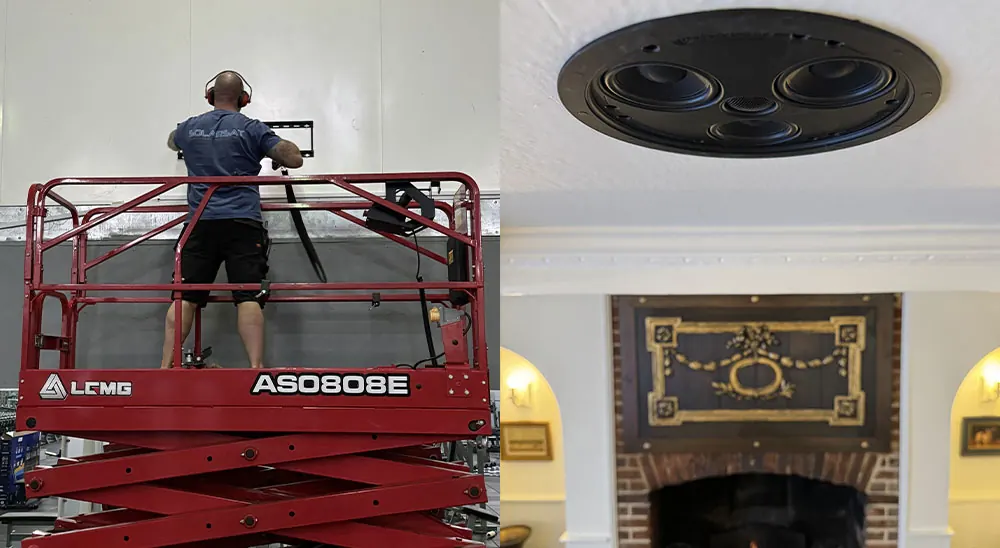
Screens, cameras, microphones and speakers for meeting rooms, with tidy cabling and controls that make calls easy to start.
Find out more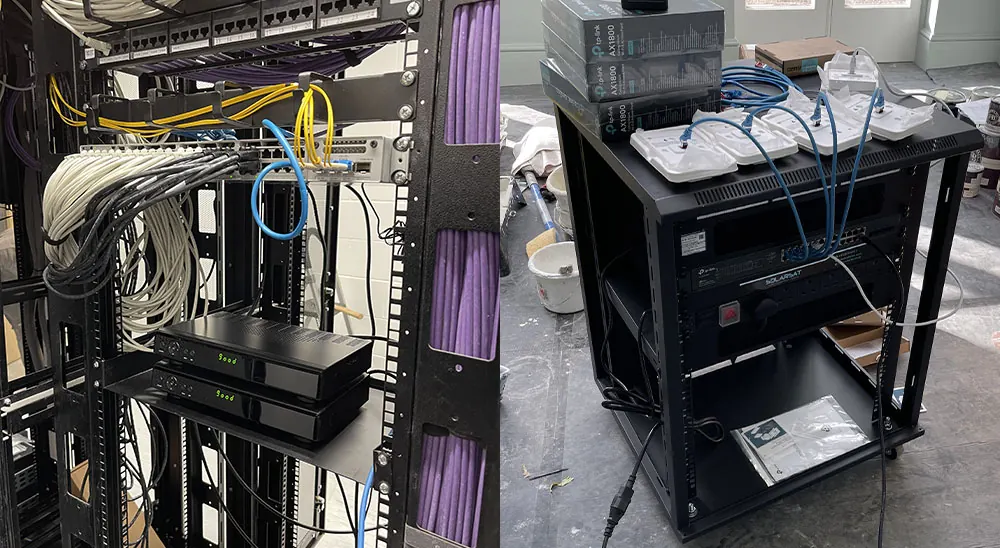
Data and network cabling
Wired network sockets, data cabinets and structured cabling for offices and homes, planned for growth and easy to maintain.
Find out more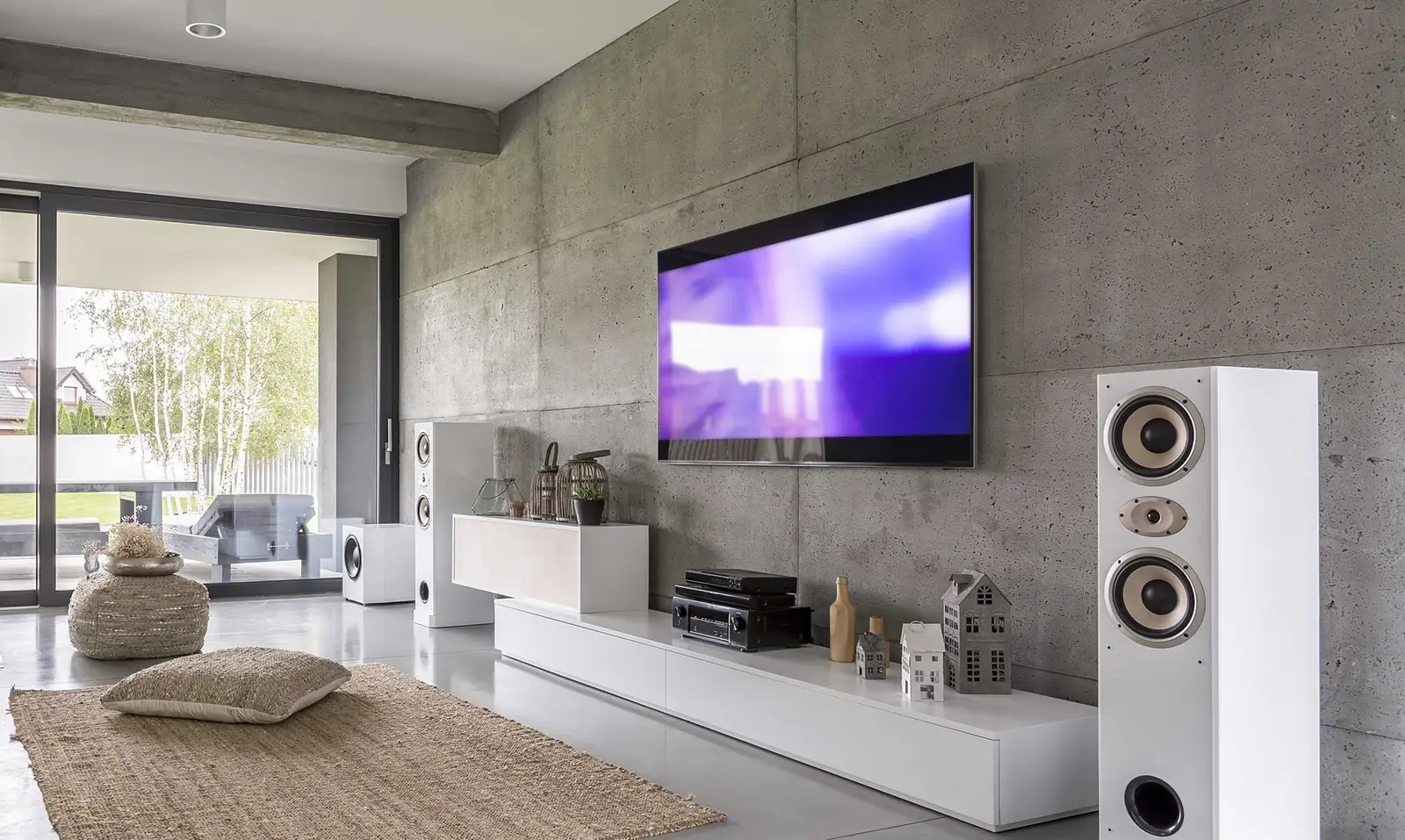
Audio-visual and home cinema
TV wall mounting, media walls, home cinema, multi-room music and commercial AV, designed and installed by our own team.
Find out more
FAQs
Frequently asked questions
Want advice for your own home or business?
Call our Mildenhall team or send an enquiry and we will talk through the options.
Enquiries
Ask us a question or get a quote
Tell us a little about your property and what you need. We will get back to you to talk it through.
- 01638 515551
- info@solarsat.co.uk
- Phones and email Monday to Saturday, 8:30am to 6pm
- 8 High Street, Mildenhall, Suffolk IP28 7EQ. Showroom visits by appointment.