
Solarsat guide
Using Starlink with your own router and mesh Wi-Fi
Starlink can provide a useful internet connection, but the supplied equipment may not place strong Wi-Fi throughout every home. A separate router or mesh system can give you more control over coverage, wired connections and network settings. The best arrangement depends on your Starlink hardware, the layout of the property and how you use each room.
Phones and email Monday to Saturday, 8:30am to 6pm. Showroom visits by appointment.

Decide what the extra equipment needs to do
Start with the problems you want to solve. You may need better signal in bedrooms, a stable connection for a television, more Ethernet ports, parental controls or a single network name across several floors. Make a note of dead spots and important devices before choosing hardware. This prevents paying for features that do not address the actual limitation.
A conventional router can replace or supplement the Starlink router, while a mesh kit uses several coordinated access points to extend wireless coverage. Some mesh systems can work in access point mode behind an existing router. Others expect to manage the whole network. Confirm the available modes and ports in the manuals for your precise models, because features differ by generation and firmware.
Check the Starlink connection and operating mode
Starlink equipment has changed over time, so do not assume every dish and router uses the same connector or bypass option. Identify the model, inspect the supplied cables and consult current manufacturer instructions before ordering an adapter or planning a direct connection. A compatible Ethernet path is usually needed when using a third-party router, but the method varies between equipment versions.
Where the Starlink router offers a bypass mode, it can hand network management to your own router. Read the instructions carefully before enabling it and record the existing settings. If bypass is not available or you retain routing on both devices, two routers may create a double NAT arrangement. Everyday browsing can still work, but some remote access, gaming and business services may need additional configuration.
Plan Wi-Fi coverage around the building
Place the main router in an open, central position where practical, rather than inside a cupboard or behind a television. Thick masonry, foil-backed insulation, metal appliances and underfloor heating can weaken wireless signals. A mesh node needs a healthy link to the main unit; putting it in the room with no signal usually means it will simply repeat a poor connection.
For a long house, outbuilding or separate annex, a wired backhaul can be more reliable than asking mesh nodes to communicate through several walls. Ethernet cable between access points keeps wireless capacity available for user devices. Where direct cabling is impractical, check whether a point-to-point link or another professionally planned connection is suitable for the route and buildings.
Configure a clear, secure network
Choose a network name and a strong, unique password, then connect a small number of devices first. Keep router firmware current and use modern security settings supported by your equipment. If you have smart devices that only work on a particular band, follow their setup guidance rather than weakening the whole network unnecessarily. Keep a note of administrator details somewhere secure.
Avoid changing several settings at once. Test a laptop by Ethernet at the router, then check Wi-Fi in the rooms where you need it. This separates an internet service issue from a local wireless issue. A speed test near the router is not a reliable measure of coverage at the far end of the house, so include real use such as a video call or file transfer from the problem room.
Know when to adjust or call for help
If wired tests are consistently good but one room performs poorly, adjust access point locations or consider a cable run before replacing the internet service. If wired performance is also variable, check Starlink status, obstructions, weather effects and service conditions. Record test times and whether other household activity was taking place; a single result does not describe the connection over a whole day.
A planned installation can help when equipment versions, long cable routes or multiple buildings make the layout difficult. An installer can check the cable path, mount access points appropriately and label connections for future maintenance. Ask for the final network layout and any changed settings to be documented, so you know which device manages routing and how to reset equipment safely. Include a basic handover for anyone responsible for opening or closing the site, and decide who can contact the provider if an interruption affects business tasks. A clear escalation plan avoids unnecessary changes to a working network.
Have a question about your own property? Contact our Mildenhall team.
Related services
Services this guide covers
Starlink installation
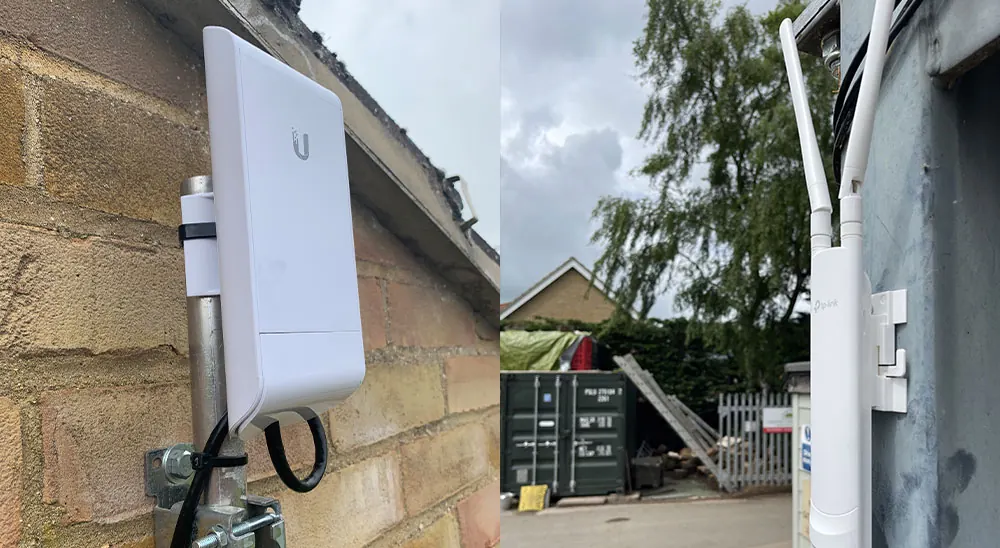
Starlink dishes positioned for a clear view of the sky, cabled in neatly and shared round the house and outbuildings.
Find out more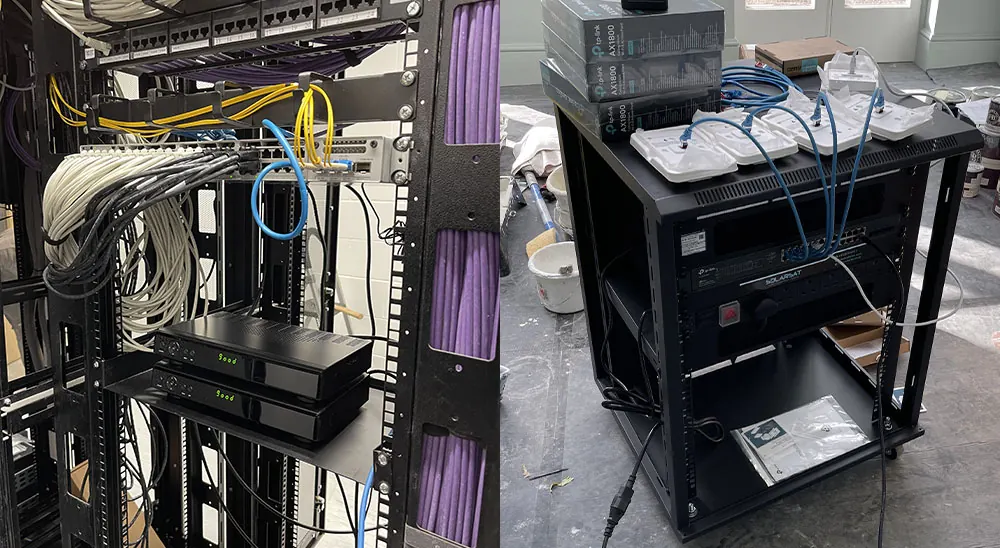
Wi-Fi and networking
Whole-property Wi-Fi, outdoor coverage, wired network points, data cabinets and wireless links between buildings.
Find out moreRural broadband
Fast, reliable internet for rural homes and businesses using 4G, 5G and Starlink, with planning, installation and support.
Find out more
FAQs
Frequently asked questions
Want advice for your own home or business?
Call our Mildenhall team or send an enquiry and we will talk through the options.
Enquiries
Ask us a question or get a quote
Tell us a little about your property and what you need. We will get back to you to talk it through.
- 01638 515551
- info@solarsat.co.uk
- Phones and email Monday to Saturday, 8:30am to 6pm
- 8 High Street, Mildenhall, Suffolk IP28 7EQ. Showroom visits by appointment.